If you're tracking shared expenses in another app, you don't have to start over. Follow these steps and TickTrack will bring your friends, groups, and balances over for you.
Install TickTrack and set up your account
Sign up for the waitlist and confirm your email to get a download link. Install the app and sign in, then come back here for the import.
Get TickTrackOpen the friend or group to export
Open a friend or group on Splitwise which you wish to export.
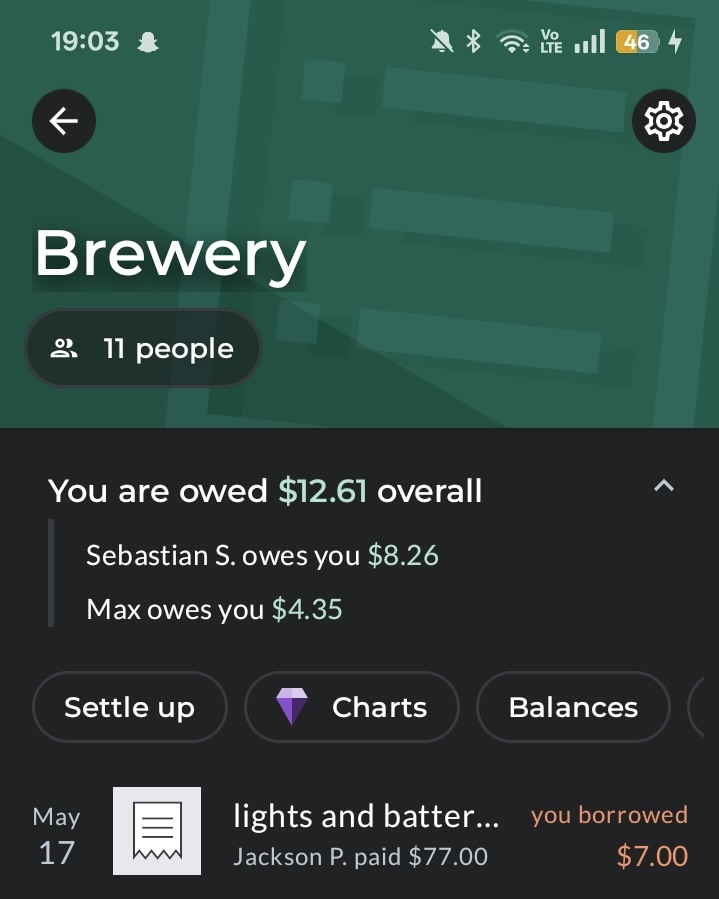
Scroll across the top bar to Export
Scroll across the top bar and select the Export button. (You can do one group at a time and repeat as needed.)
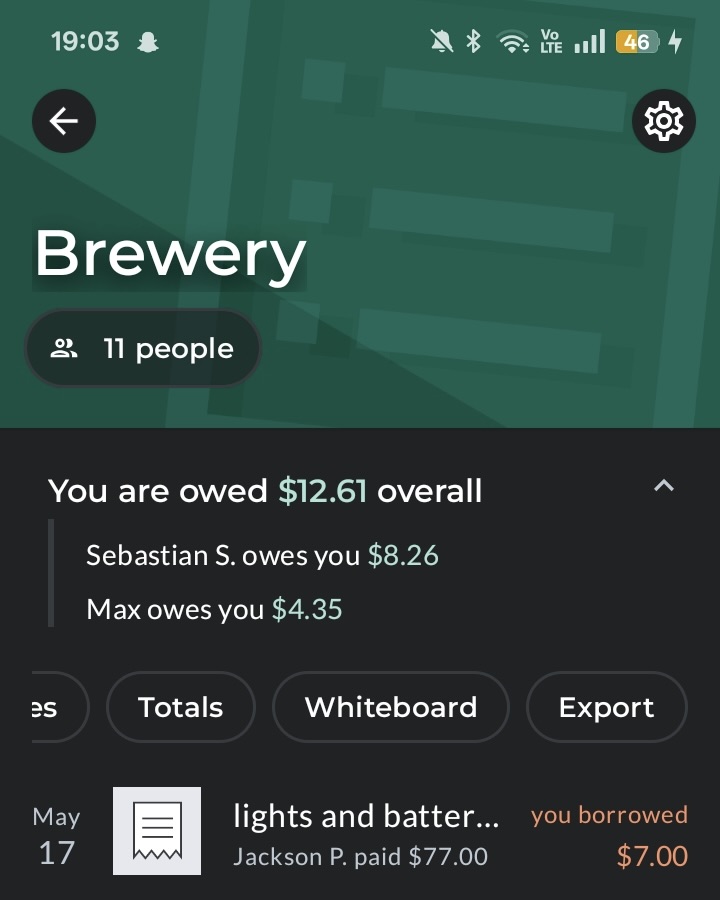
Choose TickTrack in the share sheet
When the export is ready, pick TickTrack from the share options. TickTrack opens automatically with your file.
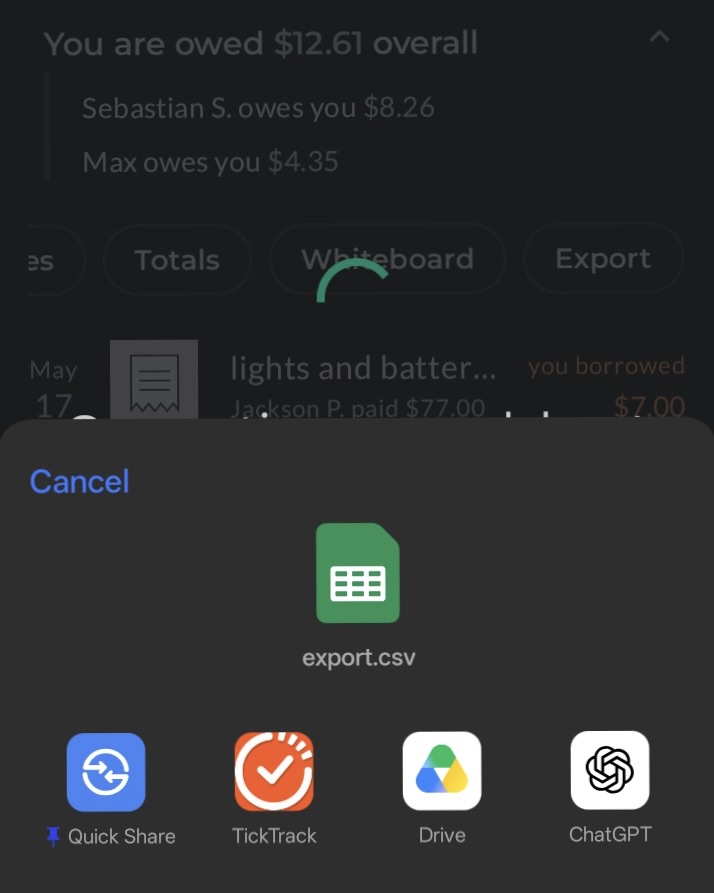
Tell TickTrack who you are
TickTrack asks which member of the group you are. You only do this once; future imports remember your Splitwise name automatically.
Name your group
Give your group a name. Placeholder members are added automatically.
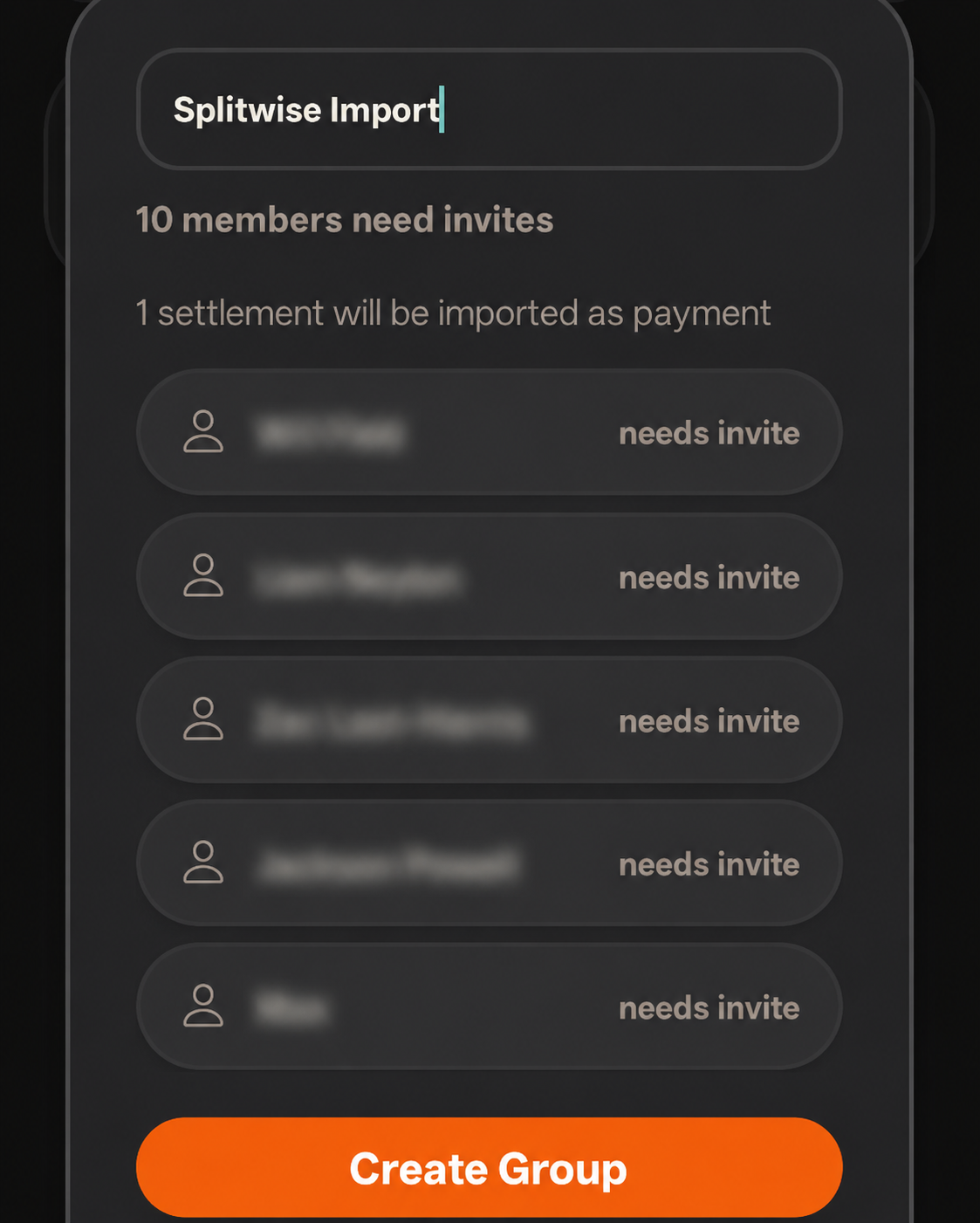
Invite your members
Hit the invite button to invite TickTrack friends or external friends via a link.
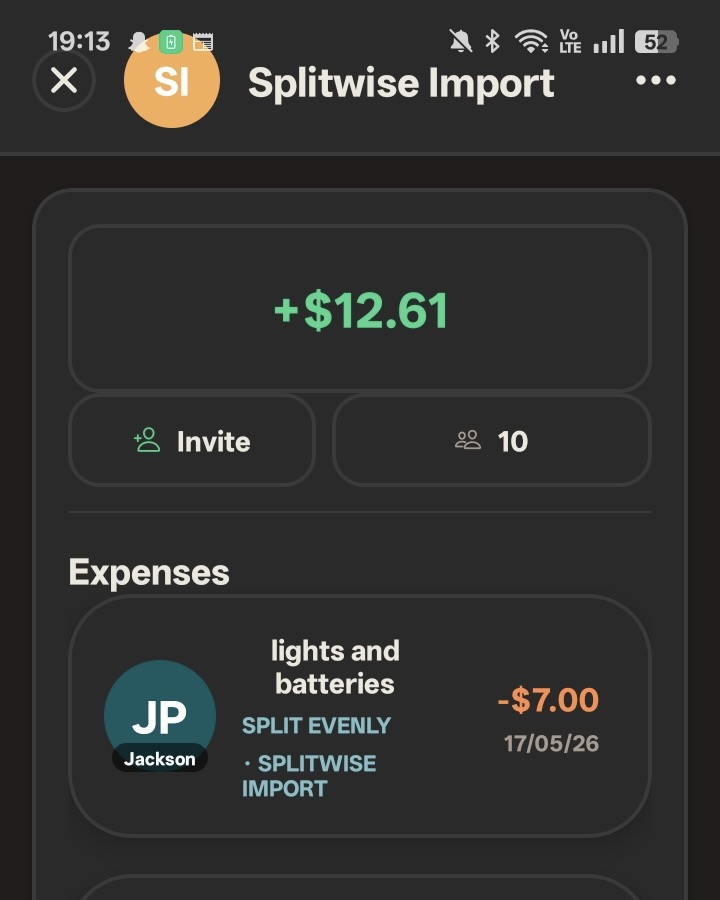
Your friend matches their Splitwise identity
When they open the invite, they pick which member of the group they are, and their share of the imported debts lands on their account. TickTrack remembers their Splitwise name, so they're matched automatically in any future groups your friends import.
Special cases
Splitwise only lets you export one group or friend at a time, so to get your full expense history across, make sure you export every group and every friend. Splitwise doesn't include non-group expenses in group exports. Those only appear in your friend exports, so if you skip the friends side, those expenses won't be tracked. We're working on a way to make this process easier, but there doesn't currently seem to be any support for it from Splitwise's side. Another approach that saves time on this process is to settle up with your friends on Splitwise, then start fresh on TickTrack and skip the import entirely.